iNetWorth
What is iNetWorth?
iNetWorth is a powerful and intuitive personal accounts manager, specifically developed for use on iPhones and iPads running iOS 18 and later. iNetWorth helps you to track your financial assets, liabilities, income, expenses and net worth. iNetWorth allows you to reconcile your bank and credit card statements and to monitor your income and expenditure by storing and processing the financial transactions that you make. iNetWorth supports split transactions, displays current and cleared account balances and processes scheduled transactions automatically. Transaction amounts can be displayed in Pounds (£), Dollars ($), Euros (€), Kroner (kr), Swiss Francs (CHF) or Złoty (zł). iNetWorth also supports: manual backup and restore; archiving; report generation and export; and the management of multiple account sets.
iNetWorth Views
iNetWorth displays transactions in a series of views, as selected by the user in the View Tab Bar, which is located at the bottom of the iNetWorth screen on an iPhone or at the top on an iPad. These views are illustrated and described below.
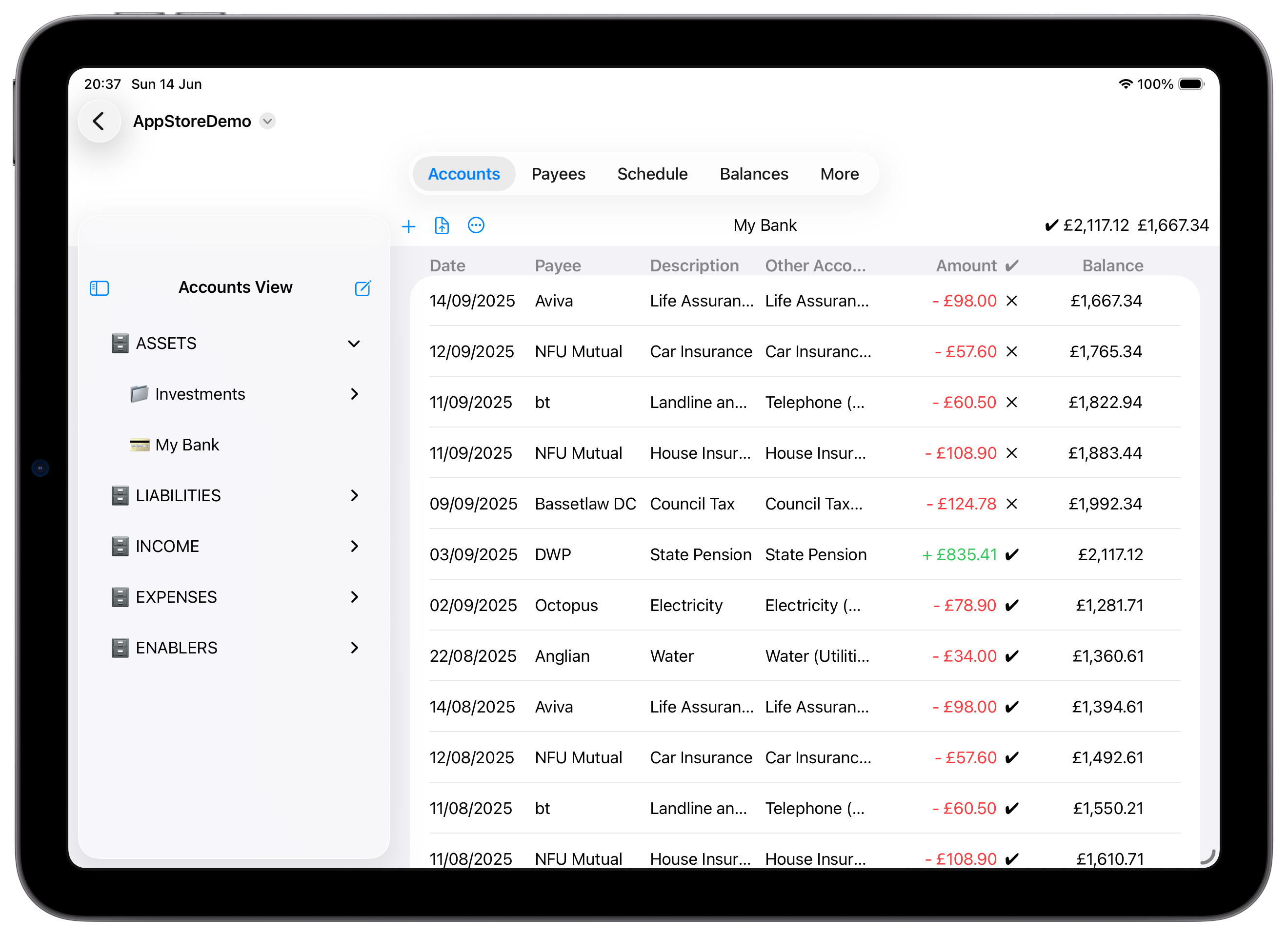
The Accounts View. On creating a new Transactions File or opening an existing Transactions File on an iPhone iNetWorth opens the Accounts View, which lists the User Accounts, Account Groups and Account Categories in an outline view. On an iPad in Landscape orientation this outline view appears in a sidebar on the left hand side of the iNetWorth window. When an account is selected in the outline view, all of its transactions are listed in a Transactions table. On an iPad in Landscape orientation the Transactions table appears on the right hand side of the iNetWorth window. On an iPhone the Transactions table simply replaces the outline view. On an iPhone in Landscape orientation a column, showing the account’s balance after the transaction has been completed, is also displayed. Transactions can be added by tapping on the + button at the top of the Transactions table. On an iPad (but not an iPad Mini) transactions, which have been exported to a CSV file from an online banking website, can be imported by tapping on the Import Button (a page symbol with an up arrow) to the right of the + button. To the right of account name are 2 labels. The label with a ✔︎ shows the account’s cleared balance. The other label shows the account’s current balance. Individual transactions can be edited, duplicated, scheduled, deleted and moved (to another account) through a context menu that appears when the user taps and holds the individual transaction. Tapping on a split transaction opens a new window that lists its subtransactions. Accounts are managed by tapping on the Edit symbol (pencil and paper) at the top of the list of accounts.

The Payees View. In this view the Payees are listed alphabetically in a searchable table. On an iPad in Landscape orientation the Payees table appears in a sidebar on the left hand side of the iNetWorth window. When a payee is selected in the Payees table, all of its associated transactions are listed in a Transactions table. On an iPad in Landscape orientation the Transactions table appears on the right hand side of the iNetWorth window. On an iPhone the Transactions table simply replaces the outline view. On an iPhone in Landscape orientation a column, showing the payee’s balance after the transaction has been completed, is also displayed. Transactions can be added by tapping on the + button at the top of the Transactions table. To the right of payee name are 2 labels. The label with a ✔︎ shows the payee’s cleared balance. The other label shows the payee’s current balance. Individual transactions can be edited, duplicated, scheduled and deleted through a context menu that appears when the user taps and holds the individual transaction. Tapping on a split transaction opens a new window that lists its subtransactions. New payees can be added by tapping on the + symbol above the list of payees and existing payees can be edited via a context menu that is revealed by tapping and holding a payee’s name.
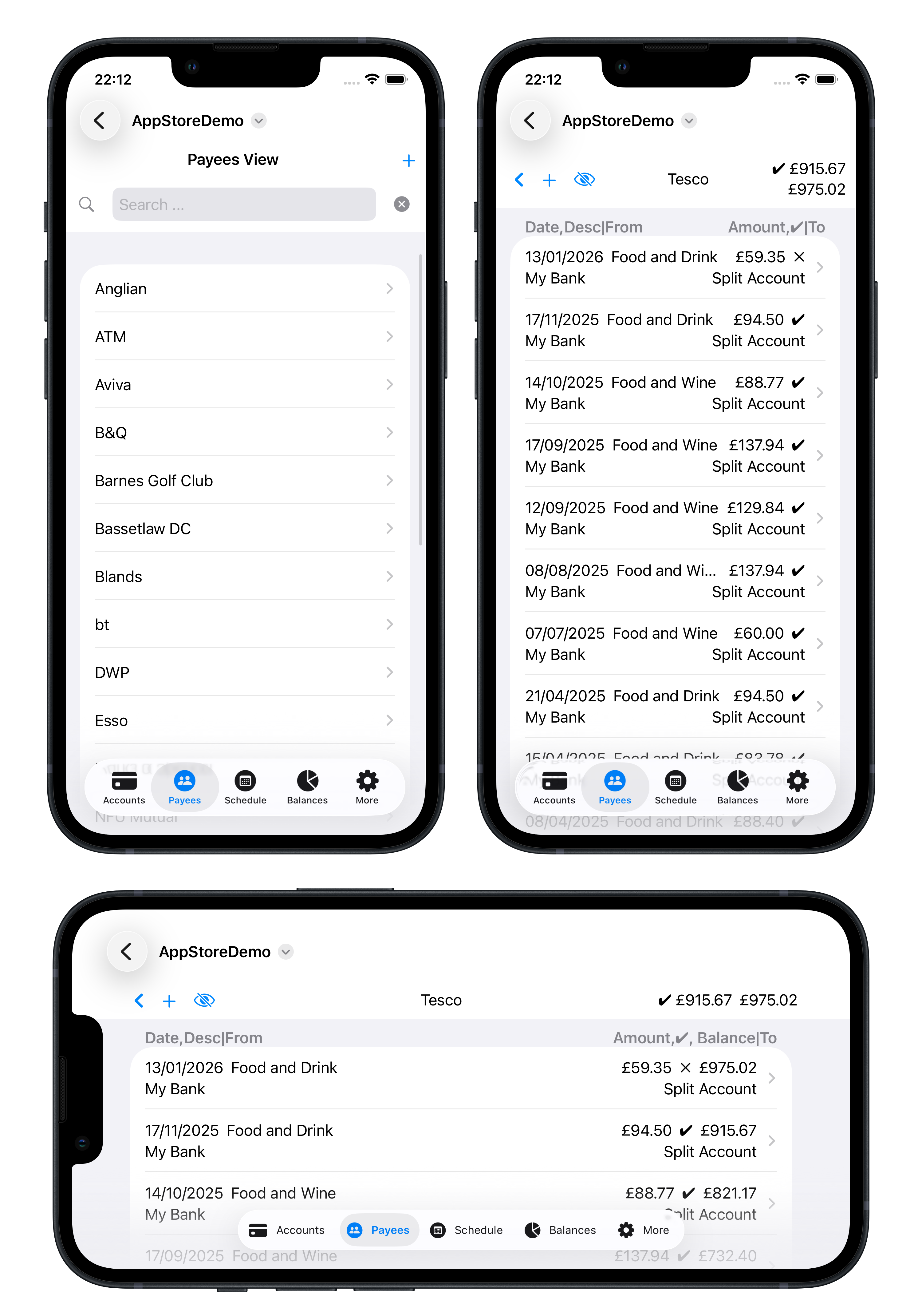
![iPad Payees Layout]](/images/ipad_payees_layout.png)
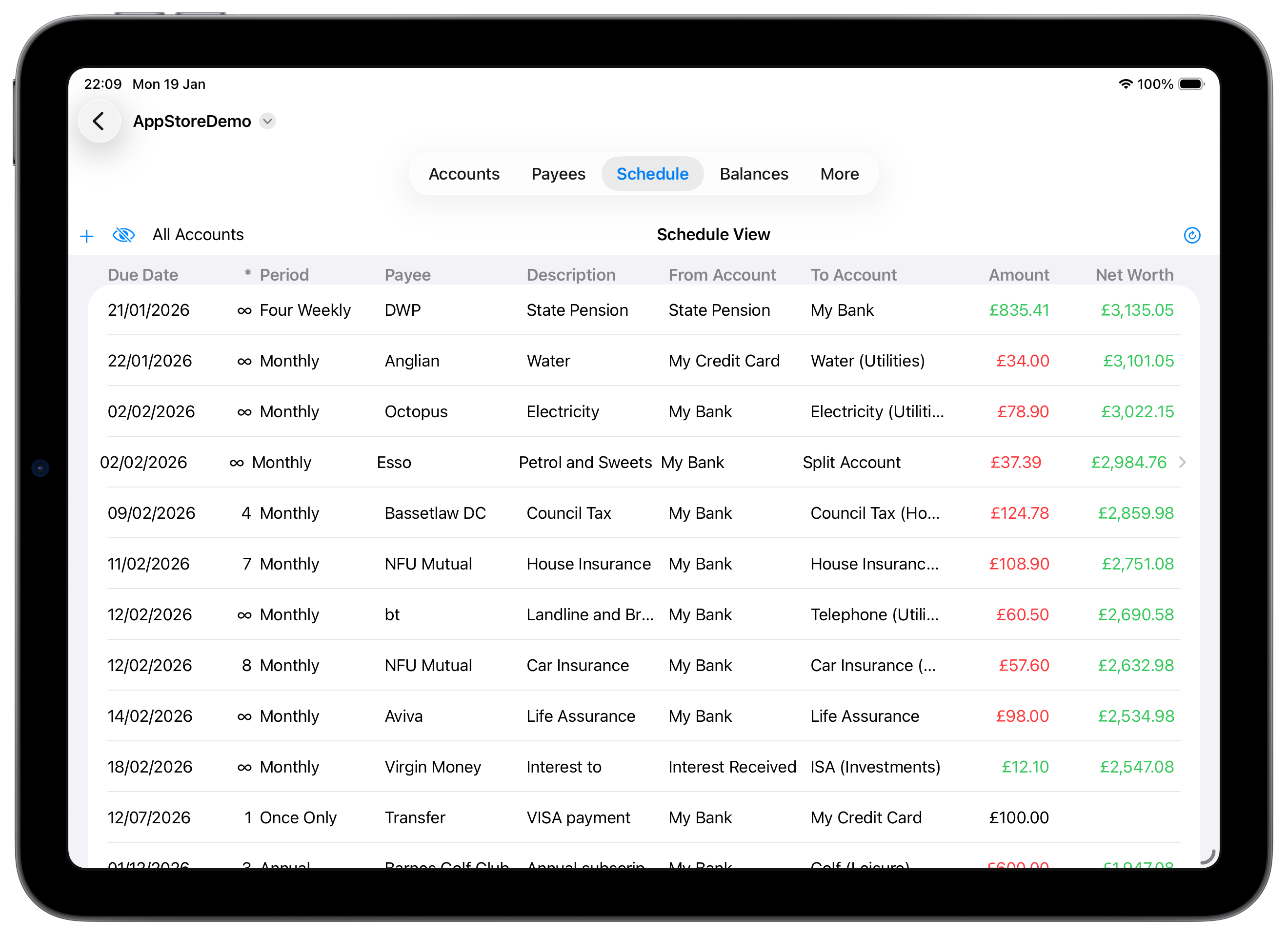
The Schedule View. All scheduled transactions are listed in a table sorted by due date. Any overdue scheduled transactions are displayed in bold text. On devices in Landscape orientation a column, showing the associated asset (or liability) account’s balance after the transaction will have been completed, is also displayed. Scheduled transactions can be added by tapping on the + button at the top of the table. Individual scheduled transactions can be edited, deleted or entered immediately (into their associated accounts) through a context menu that appears when the user taps and holds the individual scheduled transaction.
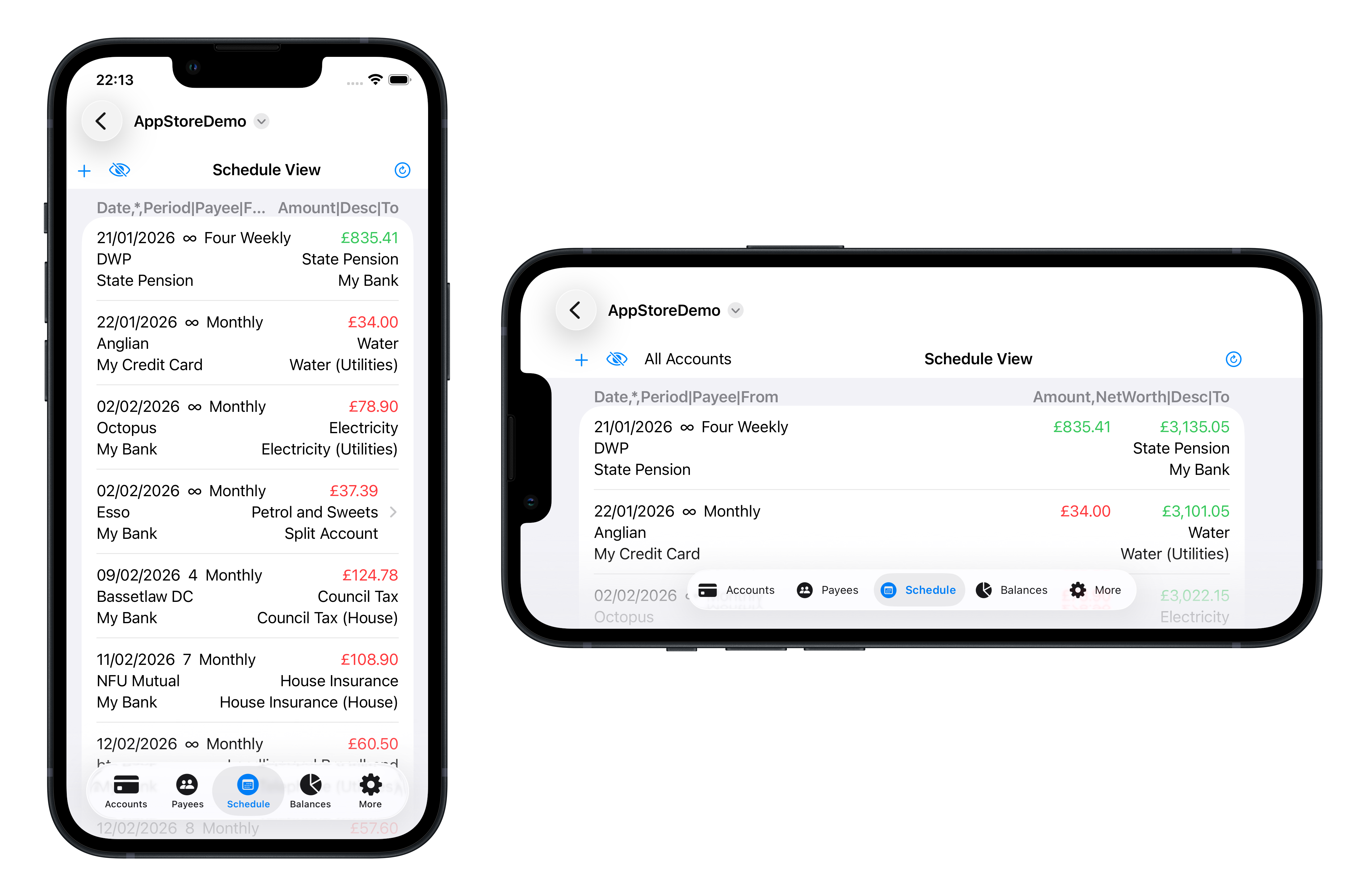
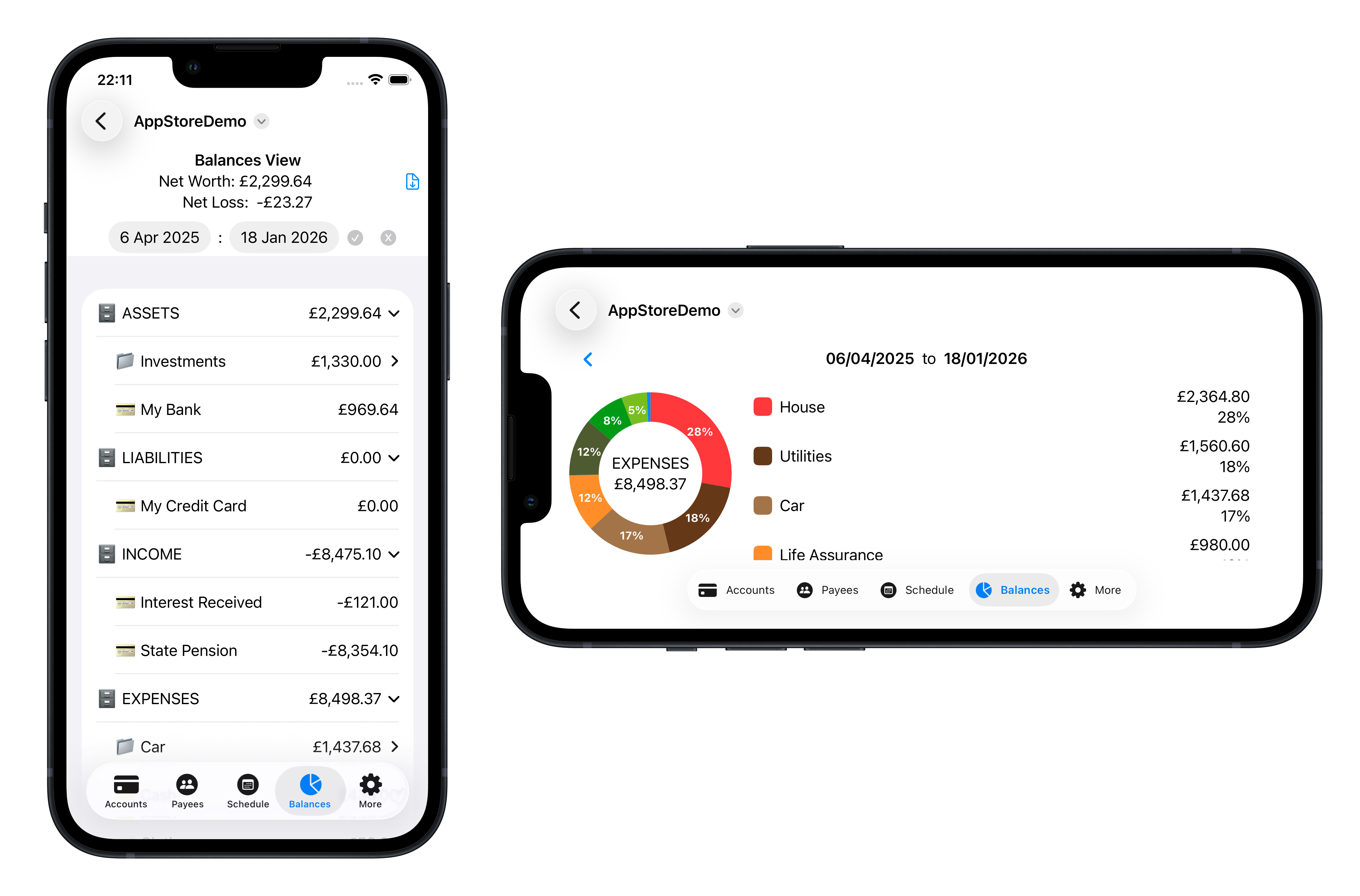
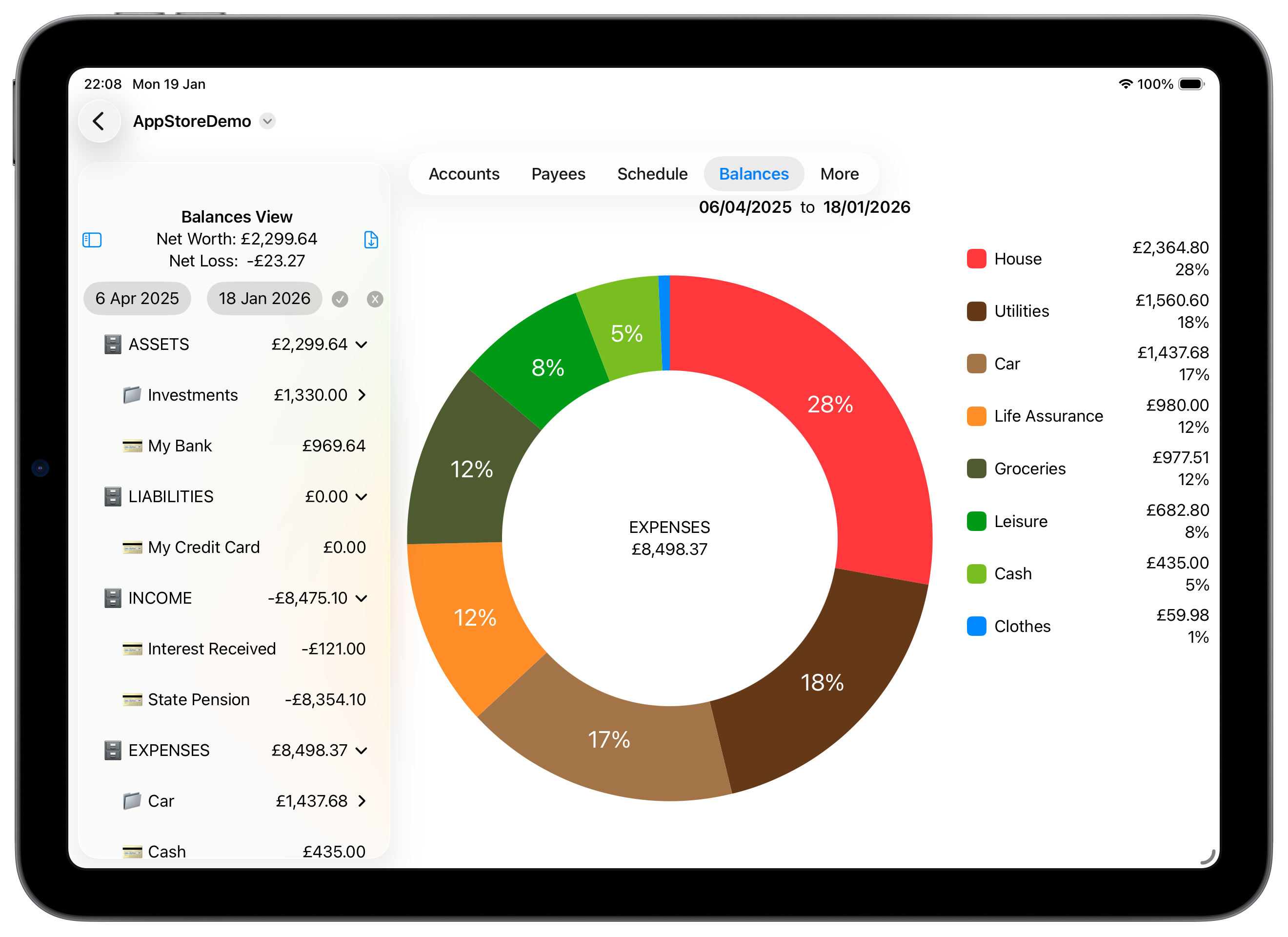
The Balances View. This view provides a read-out of the balances of all accounts, filtered by user-selectable Start and End Dates, in an outline view with a read-out of net worth displayed above it. A pie chart, showing how the account groups in an account category (or the accounts in an account group) are distributed, is displayed when the account category or group is tapped in the outline view, as long as the device is in Landscape Mode (a prompt to rotate the device is presented in Portrait Mode).
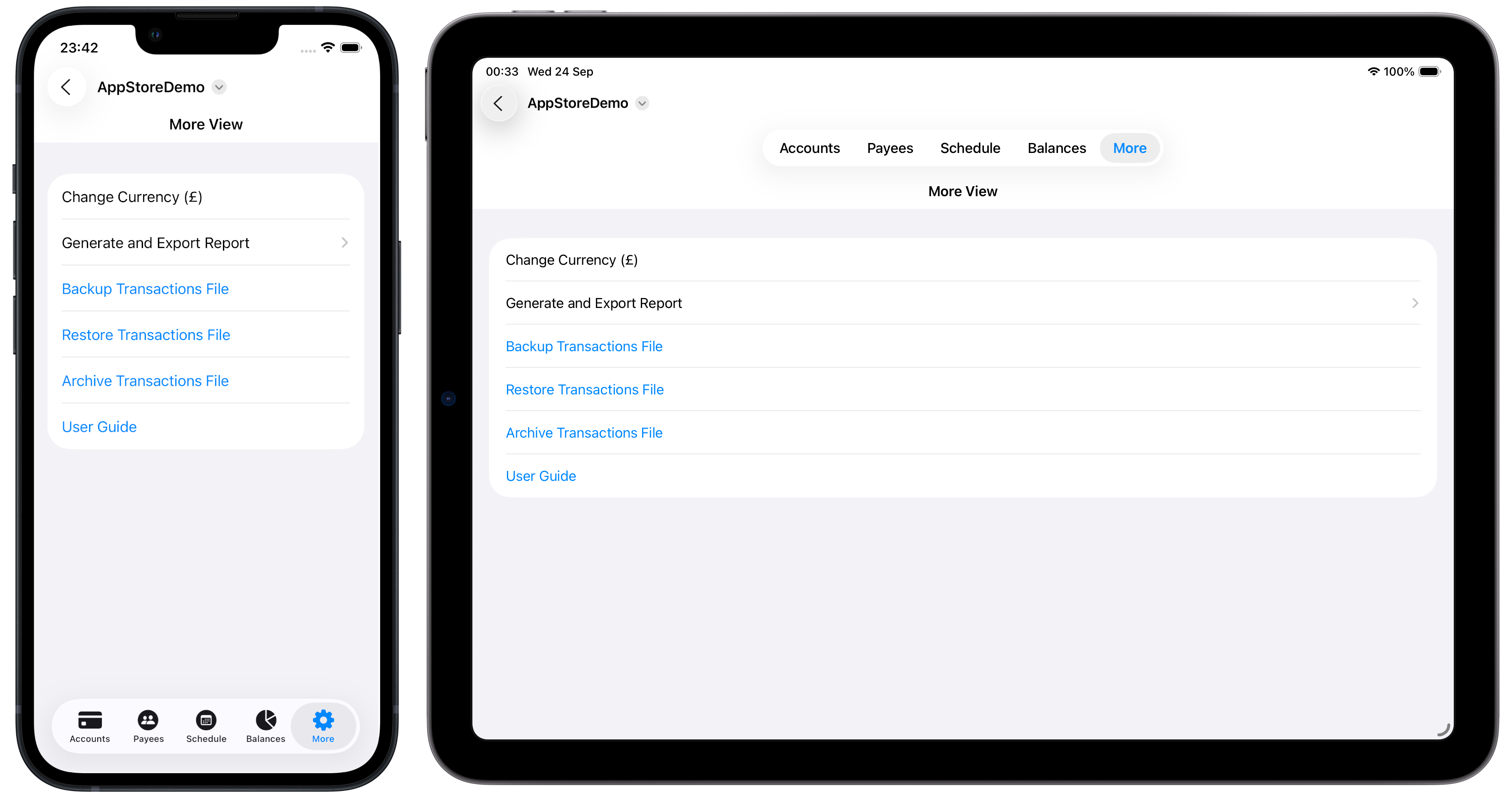
The More View. This view allows the user to: select the currency symbol for the current Transactions File; generate and export bespoke transaction reports; backup and restore the current Transaction File; archive the current Transactions File; and open the app’s User Guide.
Much more information can be found in the iNetWorth User Guide
If you are ready to download iNetWorth now, please click on the link below:

Created with Ignite
© 2022 - 2026 Christopher Hull. All rights reserved.