MyNetWorth
What is MyNetWorth?
MyNetWorth is a powerful and intuitive personal finance manager, specifically developed for use on iMacs and MacBooks running macOS 12 and later. Please click here for details of the Windows version. MyNetWorth helps you to track your financial assets, liabilities, income, expenses and net worth. MyNetWorth allows you to reconcile your bank and credit card statements and to monitor your income and expenditure by storing and processing the financial transactions that you make. MyNetWorth supports split transactions, displays current and cleared account balances and processes scheduled transactions automatically. Transaction amounts can be displayed in Pounds (£), Dollars ($), Euros (€), Kroner (kr), Swiss Francs (CHF) or Złoty (zł). MyNetWorth also supports: manual backup and restore; archiving; report generation, download and printing; the export of transactions data; and the management of multiple account sets.
MyNetWorth Views
MyNetWorth displays transactions in a series of views, each of which is selected by clicking on the appropriate View Picker button in the application’s Toolbar.

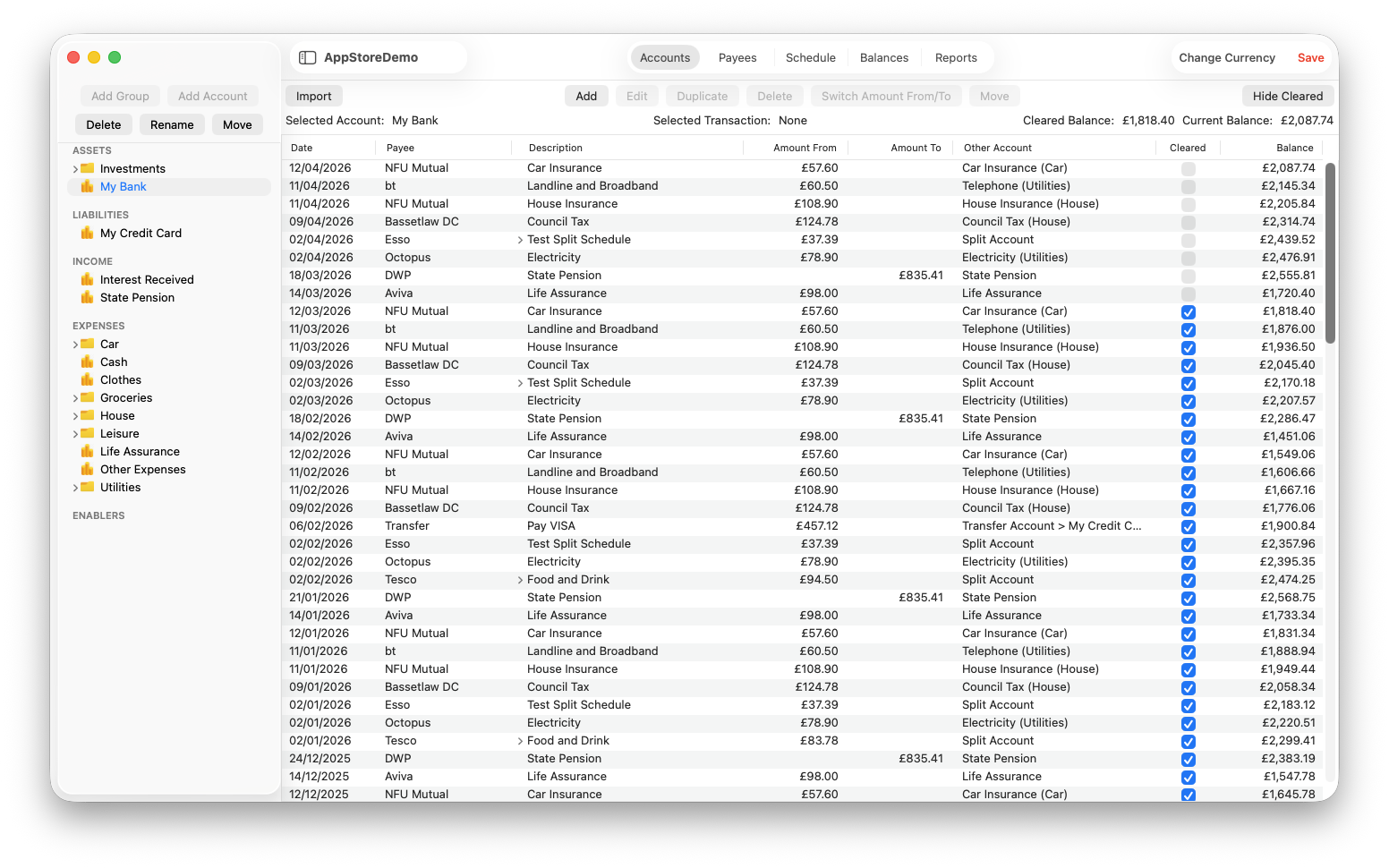
- Accounts View. User accounts are listed in an outline view in a sidebar on the left hand side of the MyNetWorth window. When an account or an account group is selected in the sidebar, all of its transactions are listed in a table in the detail view on the right hand side of the MyNetWorth window, each with a running balance. Accounts can be added, renamed, deleted and moved (within an Account Category) through a set of buttons at the top of the sidebar. Transactions can be imported (from online banking websites), added, edited, duplicated, scheduled, deleted and moved (to another account) using buttons provided at the top of the detail view. A ‘live’ read-out of the selected account’s current and cleared balances is provided. Cleared transactions can be hidden from view by clicking on the Hide Cleared toggle button.
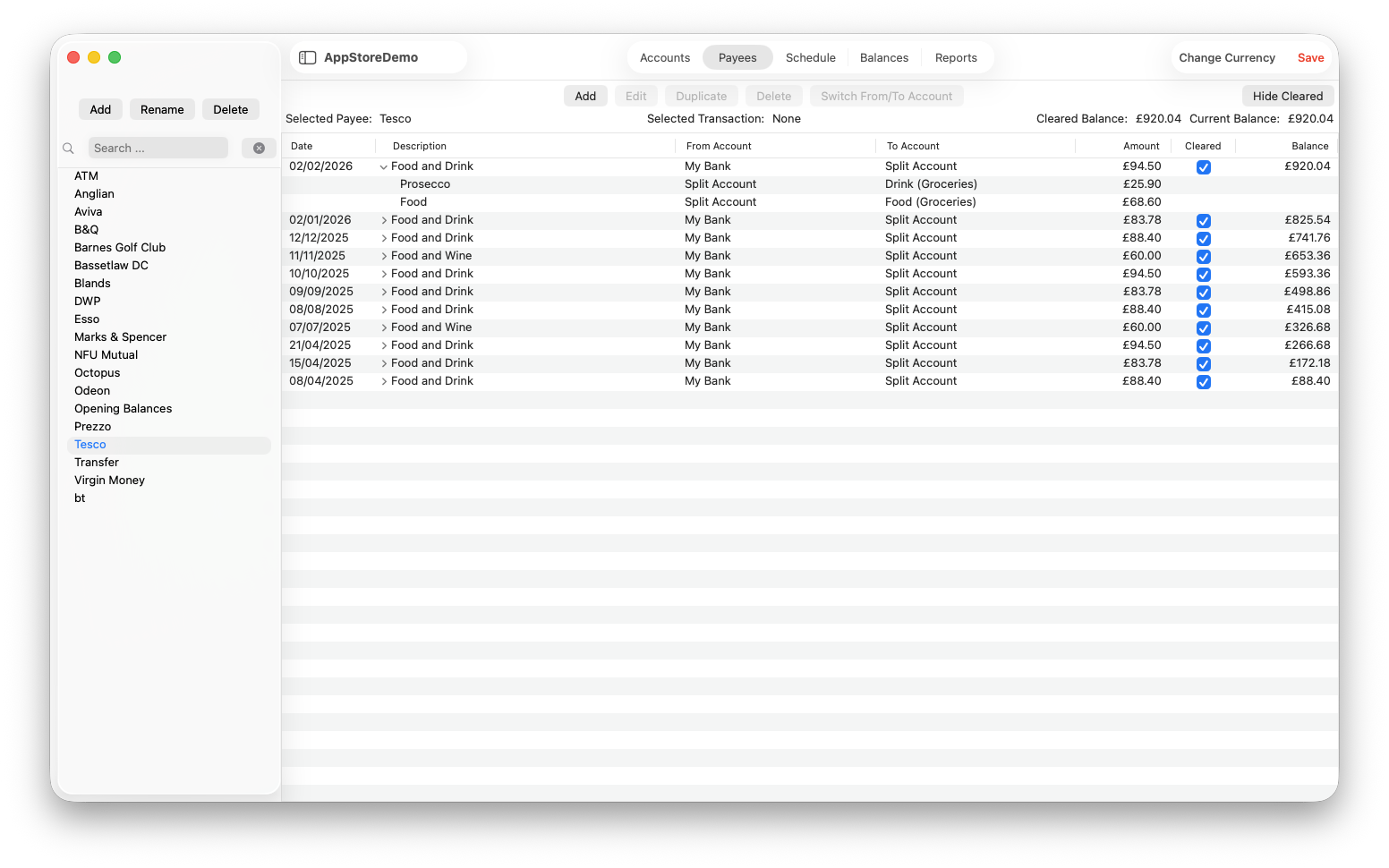
- Payees View. Payees are listed in a table in a sidebar on the left hand side of the MyNetWorth window. When a payee is selected in the sidebar, all of its associated transactions are listed in a table in the detail view on the right hand side of the MyNetWorth window, each with a running balance. Payees can be added, renamed and deleted through a set of buttons at the top of the sidebar. Transactions can be added, edited, duplicated, scheduled or deleted using buttons provided at the top of the detail view. A ‘live’ read-out of the selected account’s current and cleared balances is provided. Cleared transactions can be hidden from view by clicking on a toggle button.
- Schedule View. All scheduled transactions are listed in a table in a single detailed view; overdue scheduled transactions are displayed in bold text. Scheduled transactions can be added, edited, duplicated, deleted or entered immediately (into their associated accounts) using buttons provided at the top of the detail view. The scheduled transactions table includes a column showing the balance that will remain in the From Account (for debits to net worth) or the To Account (for credits to net worth) once the scheduled transaction has been executed. Scheduled transactions can be filtered by account, in which case the NetWorth column header changes to Balance and the the future balance of the selected filtered by account is displayed.

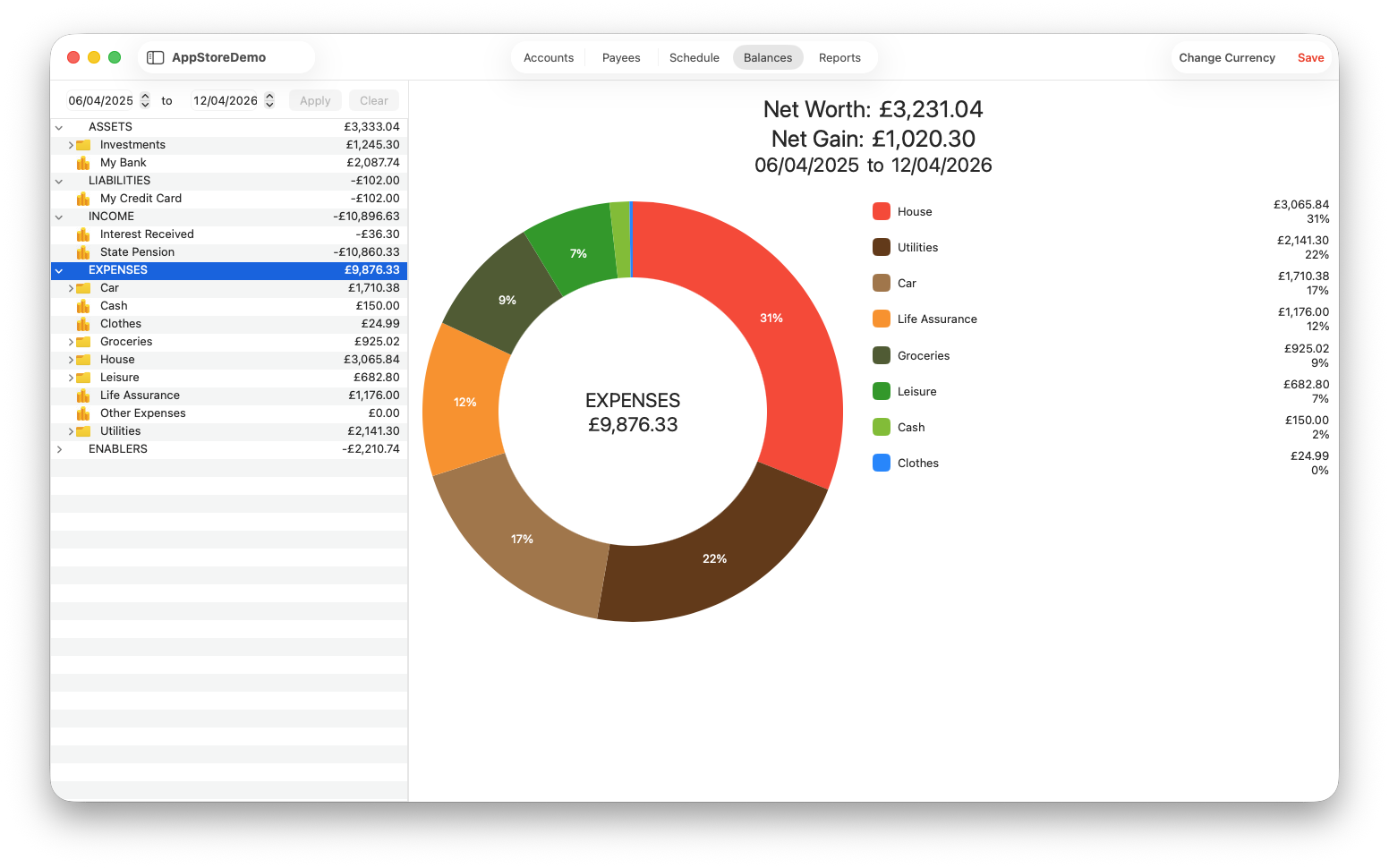
- Balances View. This view provides a read-out of the balances of all accounts, filtered by user-selectable Start and End Dates, in an outline view on the left hand side of the MyNetWorth window. A read-out of net worth and net gain/loss for the selected accounting period is displayed in a panel on the right hand side. If an Account Group or Category is selected, a pie chart, showing how accounts are distributed within their selected parent category or group, is also displayed.
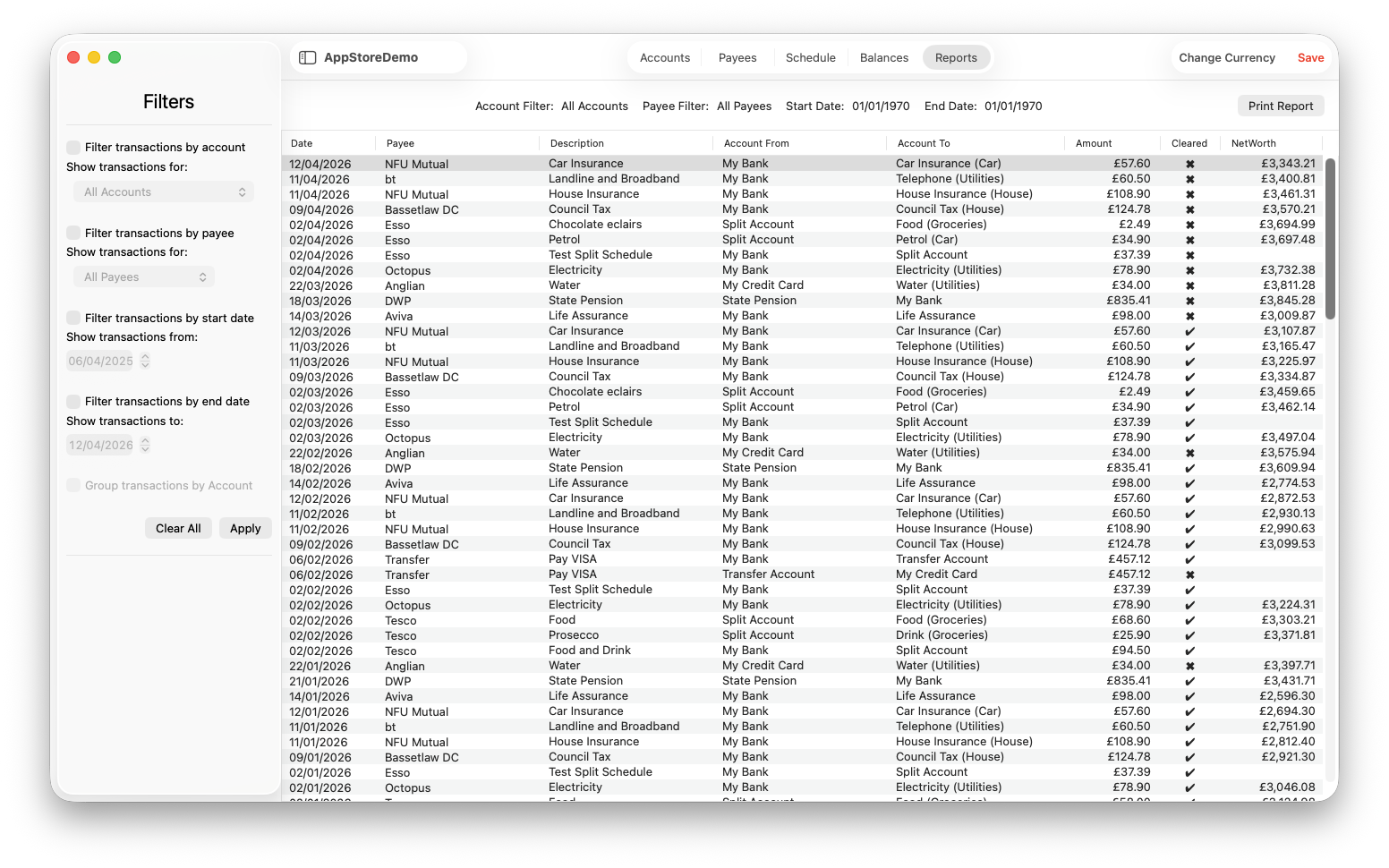
- Reports View. A list of all transactions, as filtered by options that are selected by the user in a sidebar on the left hand side of the MyNetWorth window, appears in a table in the detail view on the right hand side. Reports can be printed by clicking on the Print Report button or, as with all the other views, exported to a Comma Separated Variable (CSV) file.
Much more information can be found in the MyNetWorth User Guide
If you are ready to download MyNetWorth now, please click on the link below:

Created with Ignite
© 2022 - 2026 Christopher Hull. All rights reserved.